System Management App
Overview
The System Manager App is a special application in the dejaOS system used for performing low-level maintenance tasks. It is primarily used for application installation, system information queries, and switching system operating modes.
As system versions have evolved, the System Manager App has upgraded from an interface-less PC tool management mode to an interface-based device-side management mode. The current recommended release is 2.1.5, which builds on 2.1.0 with several UX improvements, a clearer exit experience, passive entry under crash protection, application runtime log download, and cloud device management for remote rescue and upgrades.
1. New Version (2.1.0+): Device-Side Management Mode
The new version provides a visualized System Manager App, supporting management and configuration directly on the device screen, as well as remote management via a local network.
1.1 How to Enter
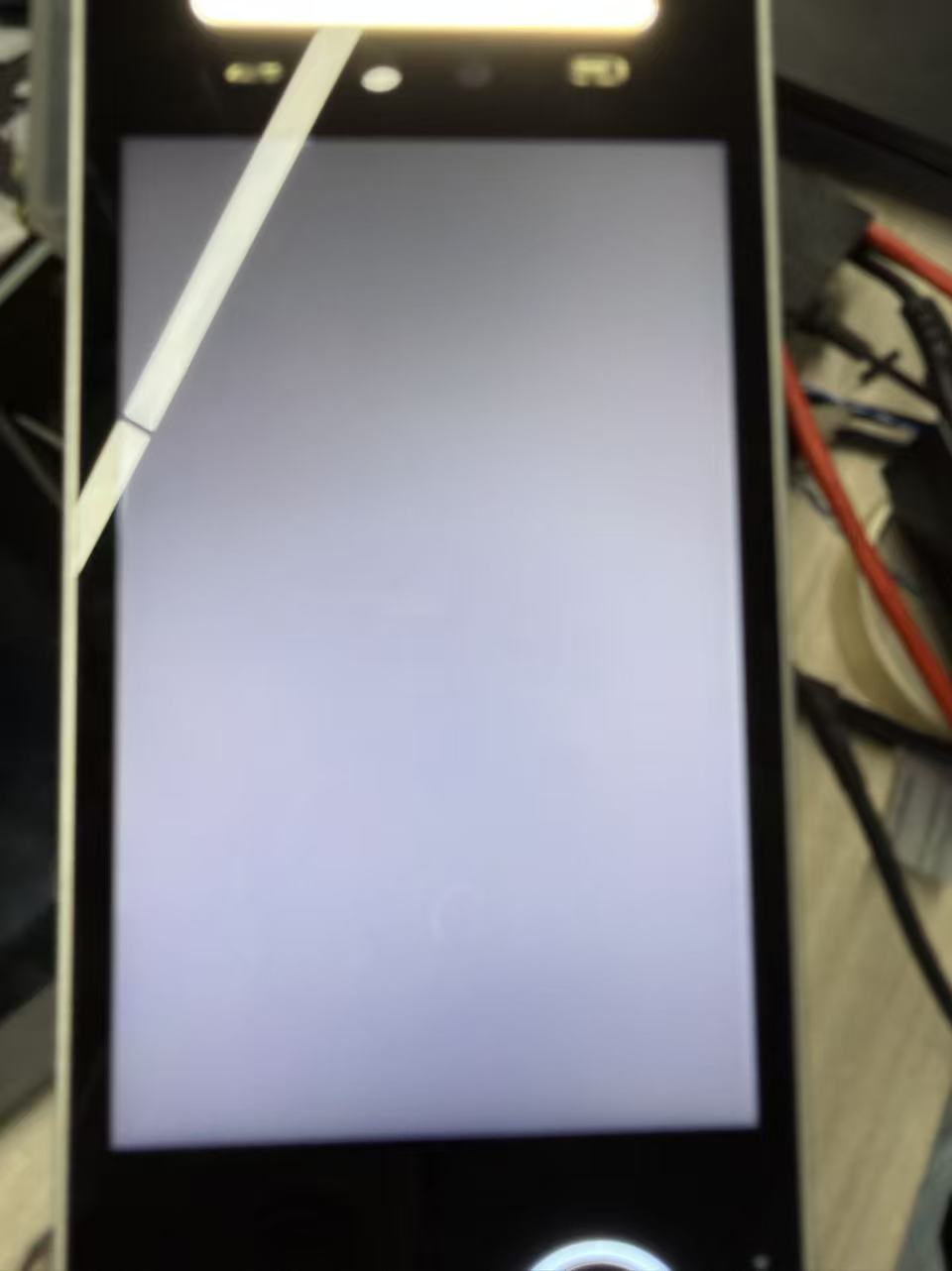
When the device starts up, a solid gray / transition background is displayed for a short window (about 2 seconds). During this period, long-press anywhere on the screen to enter the System Manager App. Start long-pressing only after you see that background, not as soon as the device powers on.
Detailed steps:
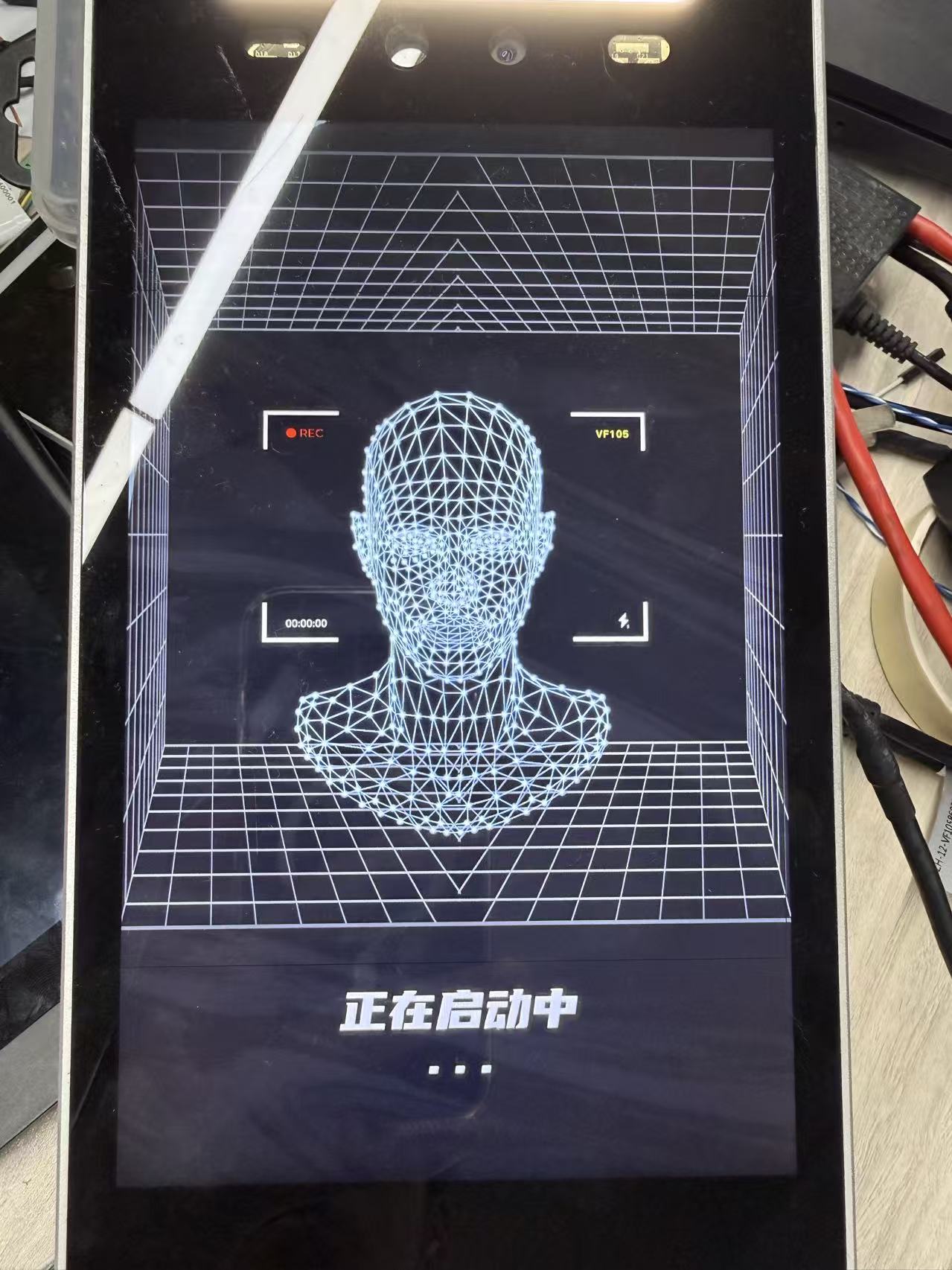
Step 1: Power on and wait for the startup screen
After power-on, the screen first shows the startup view with “Starting up…”.
Step 2: Wait for the transition (gray) screen, then long-press in time
After a few seconds the device enters the transition / gray screen. You must long-press the screen here to enter System Manager. If you wait too long without long-pressing, reboot the device and try again.
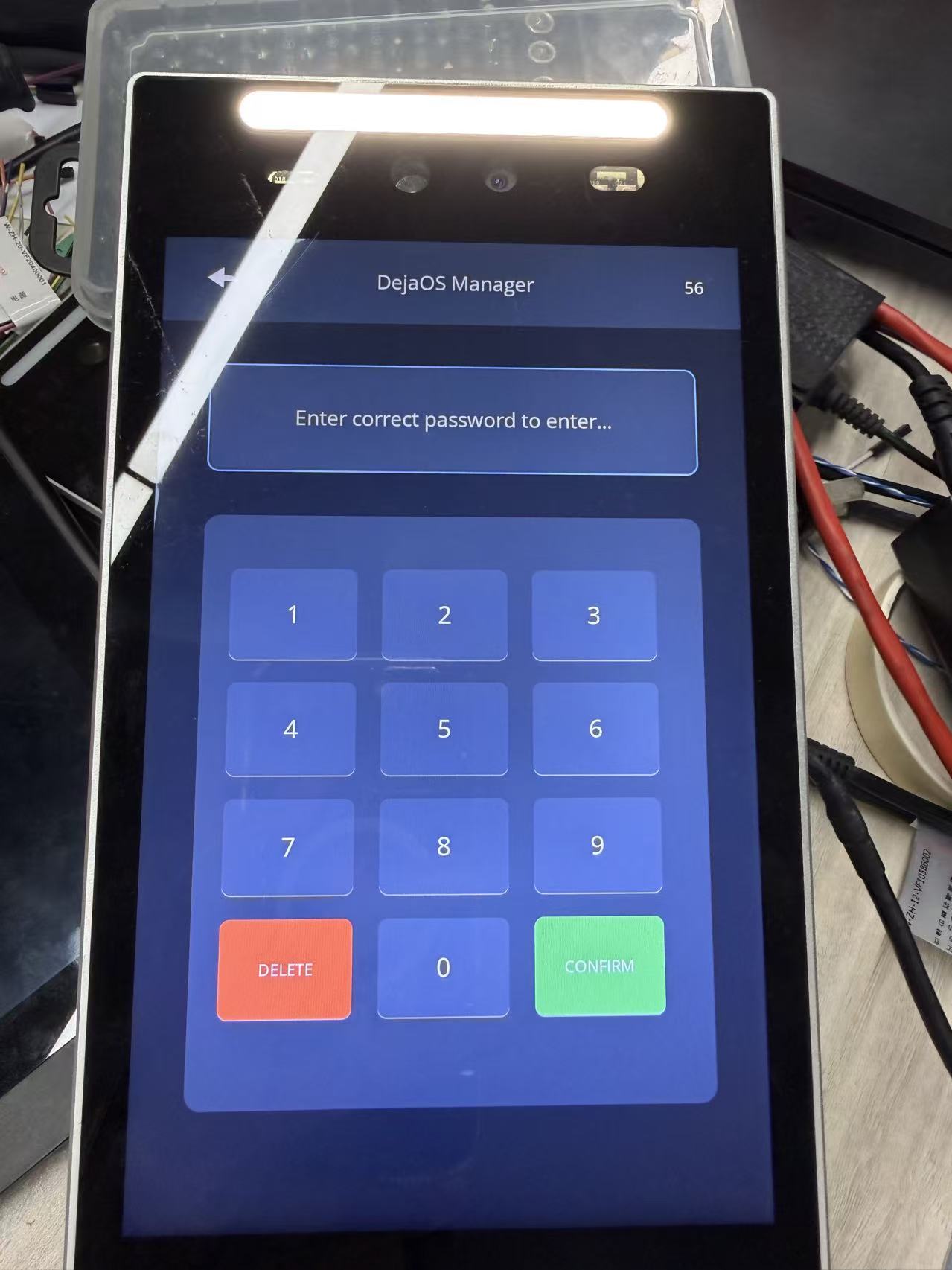
Step 3: Enter the administrator password
On the DejaOS Manager password page, enter the administrator password (default 314159) and tap CONFIRM. You can change this password later in system configuration.
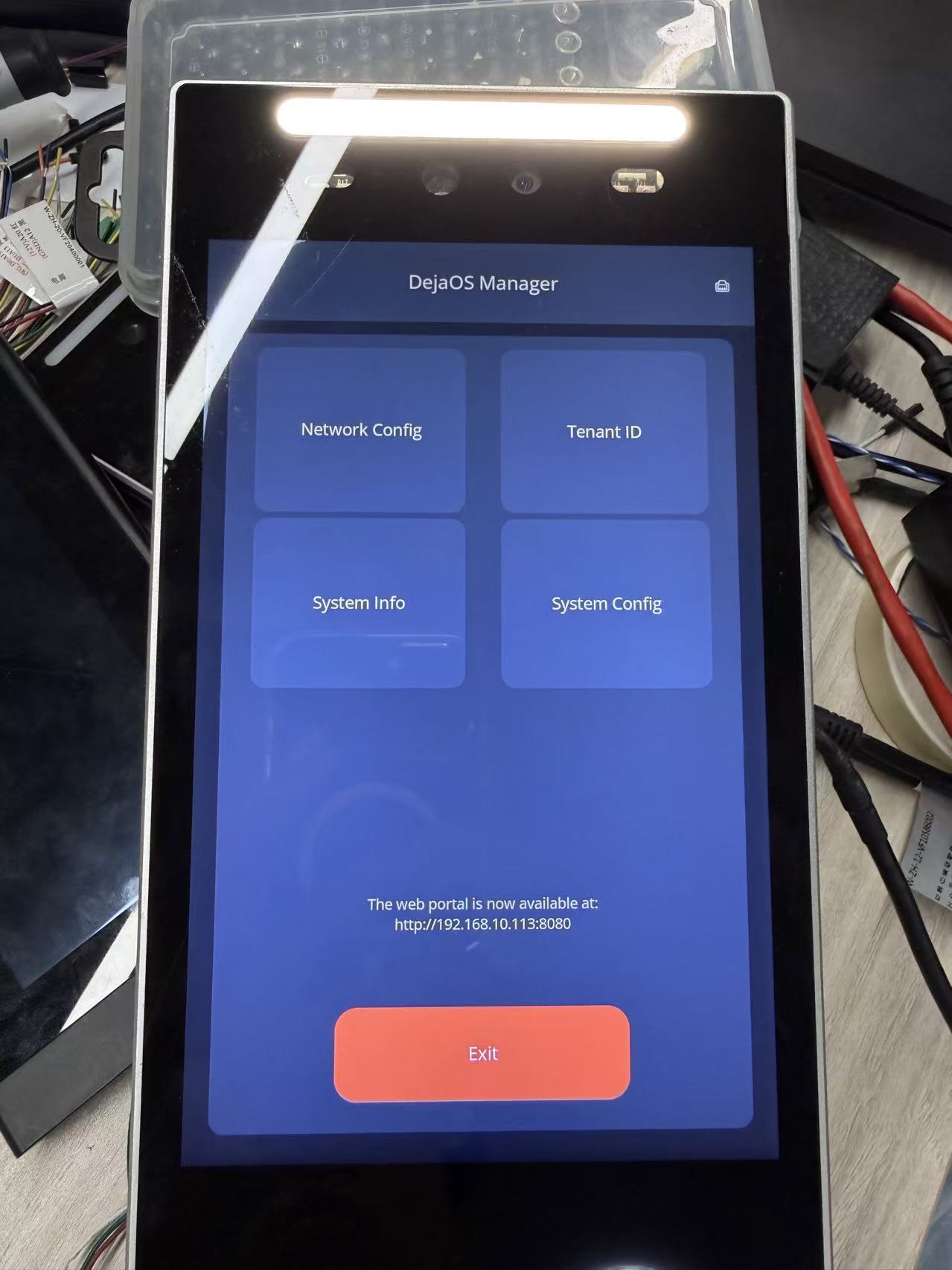
Step 4: Open the main menu and connect to the network
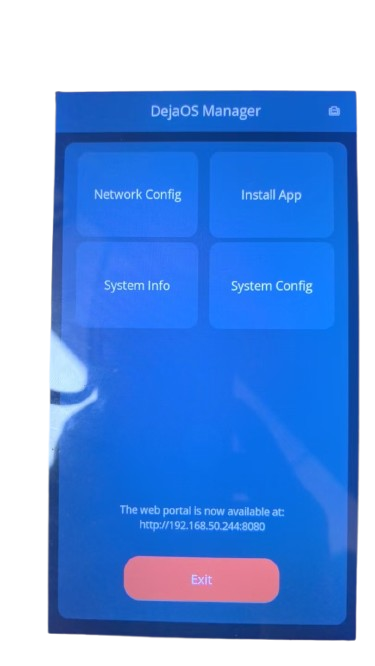
On the DejaOS Manager main menu, plug in the Ethernet cable (or connect Wi-Fi), complete the corresponding network settings, tap the Connect button, wait about half a minute for the connection to finish, then return to the home page. The bottom of the screen shows the device address, for example:
The web portal is now available at: http://192.168.10.113:8080
Note the device IP (use the value shown on your device). You can then use on-device menus or open the Web console from a PC on the same LAN.
1.2 Main Function Interface
The main interface includes four core functional modules:
- Network Config: Configure Wi-Fi or Ethernet connections.
- Sys Info: View basic information such as DejaOS system versions and installed application version/size.
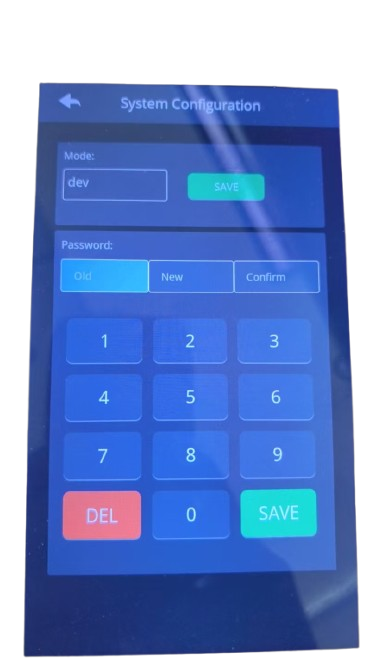
- System Config: Change the system password and switch system operating modes (refer to System Mode).
- Install App: Support installing DPK application packages via network download or local import.
1.3 System Configuration & Mode Switching
In the system configuration page, you can intuitively modify the system operating mode (Development, Production, Test; see System Mode) and change the administrator password.
1.4 Remote Web Management
In addition to operating on the device screen, the System Manager App also has a built-in Web server. You can connect your computer and the device to the same local network, access the device's IP address via a computer browser, and enter the Web console for remote management. This method is more flexible and simple.
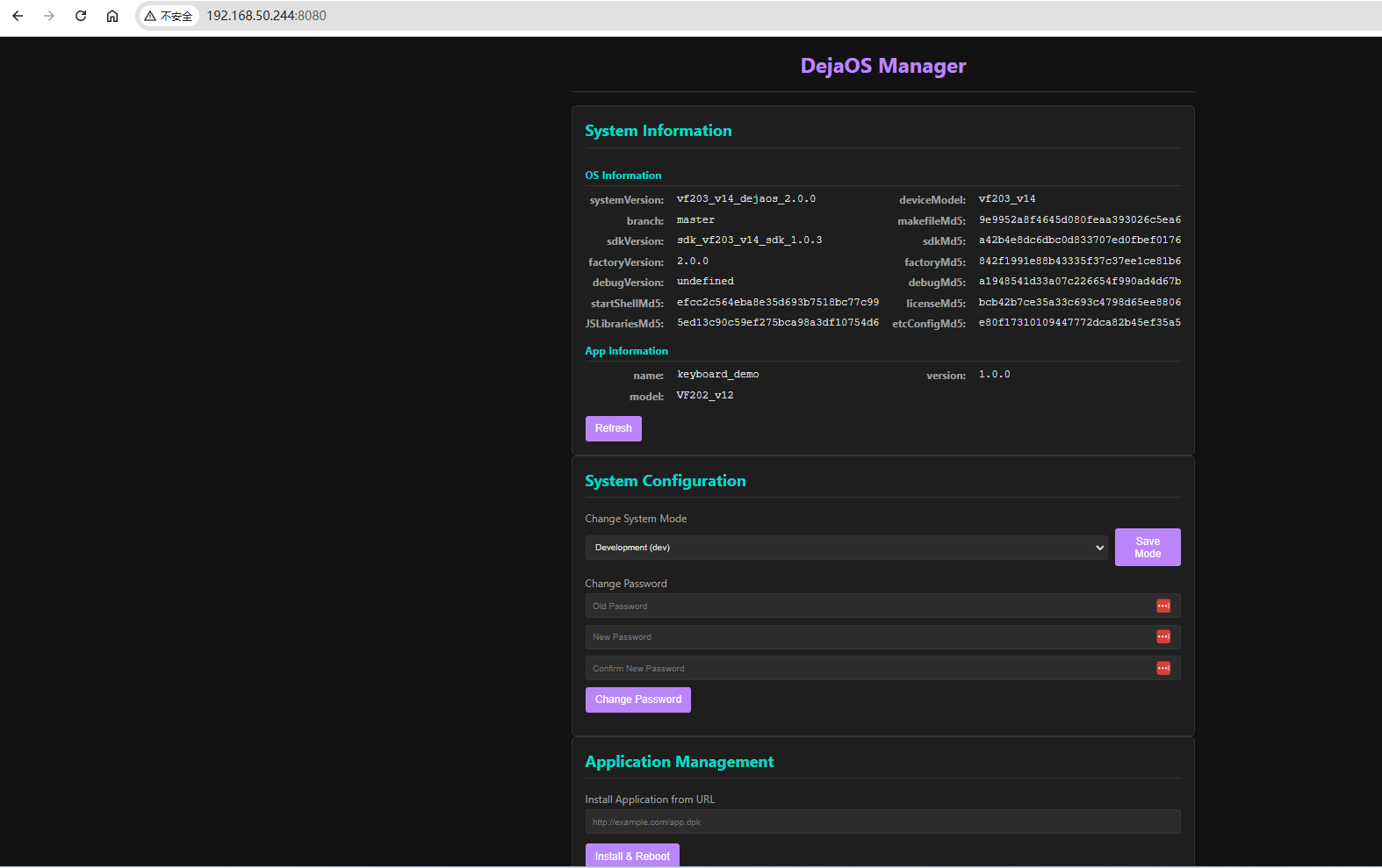
Through the Web management page, you can also upgrade and install application packages, change the operating mode, and perform other operations.
1.5 Version 2.1.5 Enhancements
2.1.5 is based on 2.1.0. It keeps the same entry flow, password, and core modules, and adds the improvements below.
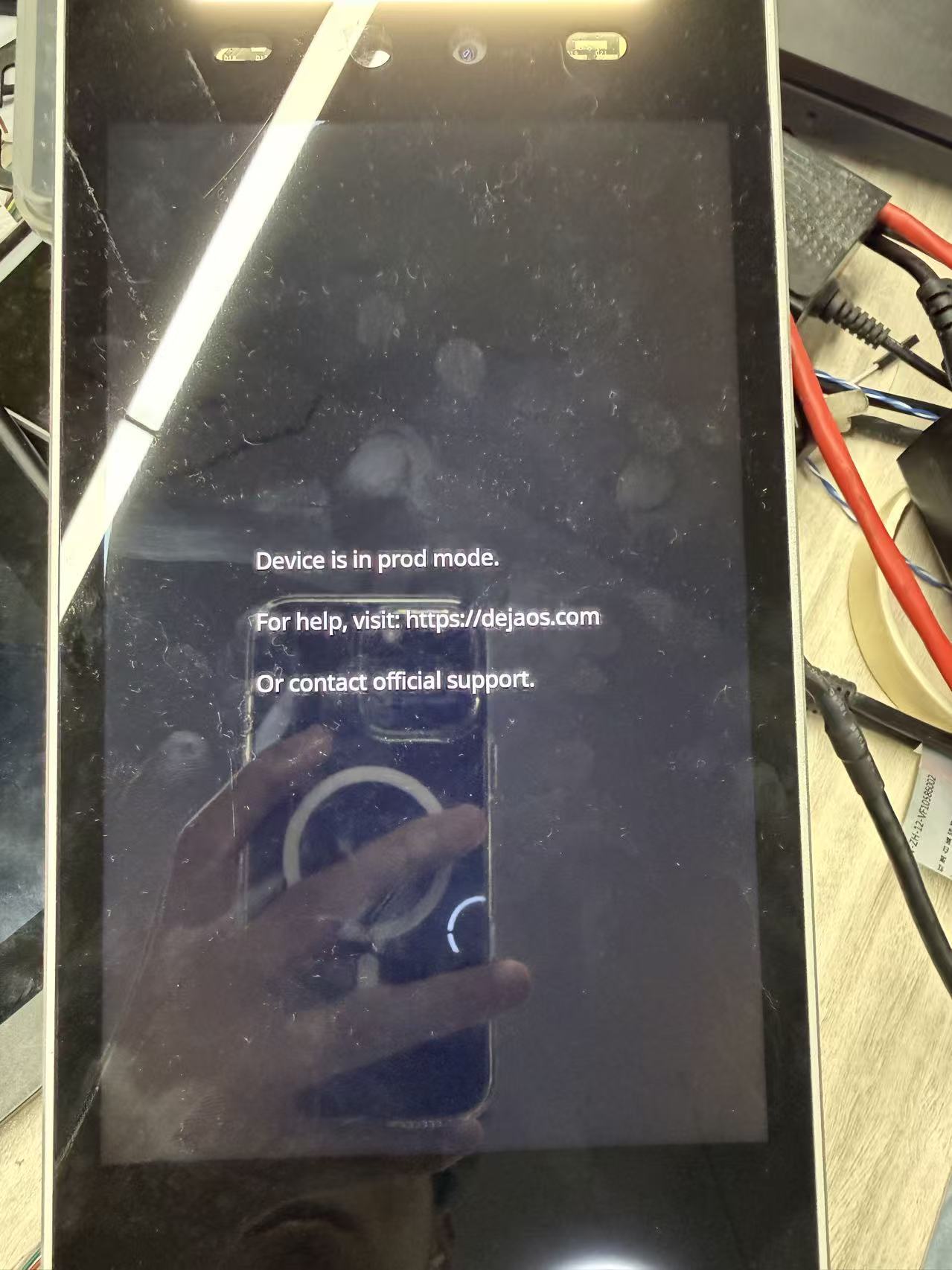
Clearer UI when exiting an app
Previously, after an application exited, the screen often kept showing the last page of that app, so users sometimes thought it was still running.
In 2.1.5, exiting an app switches to a clear status page (for example, the production-mode hint page), so it is obvious that the previous application has stopped.
Passive entry (watchdog circuit breaker)
In addition to the normal long-press on the gray screen entry, 2.1.5 supports passive entry:
If the main application repeatedly crashes because of unexpected bugs or bad configuration, and the watchdog detects 6 consecutive restarts without a successful run, the system triggers circuit-breaker protection. The device then stops trying to launch the main app, safely falls back, and stays permanently in System Manager mode.
This keeps the device reachable in extreme failures so technicians can enter System Manager, collect logs, and diagnose the issue.
Application runtime log download
In development mode, runtime logs can be viewed in real time in VS Code. In production, live logs are hard to access. Starting with 2.1.5, you can download application runtime logs from the Web console while in System Manager.
First enter System Manager as described in 1.1 How to Enter and note the device IP shown on the main menu. Then:
Step 1: Open the Web console on a PC
- Make sure the PC and the device are on the same LAN.
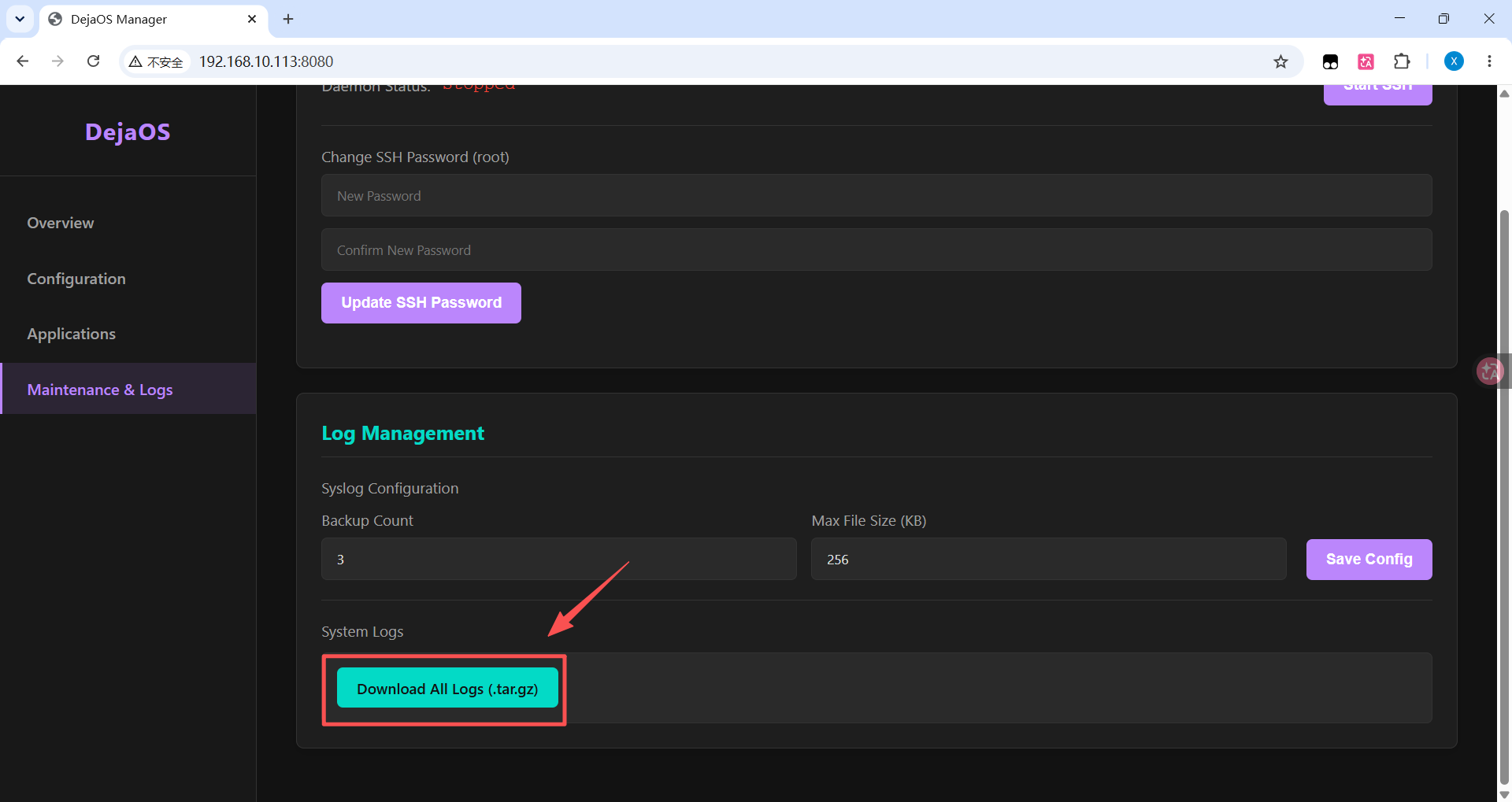
- In a browser, open
http://<device-IP>:8080(default port 8080). - In the left menu, select Maintenance & Logs.
- Click Download All Logs (.tar.gz) to download the logs.
Step 2: Confirm the download
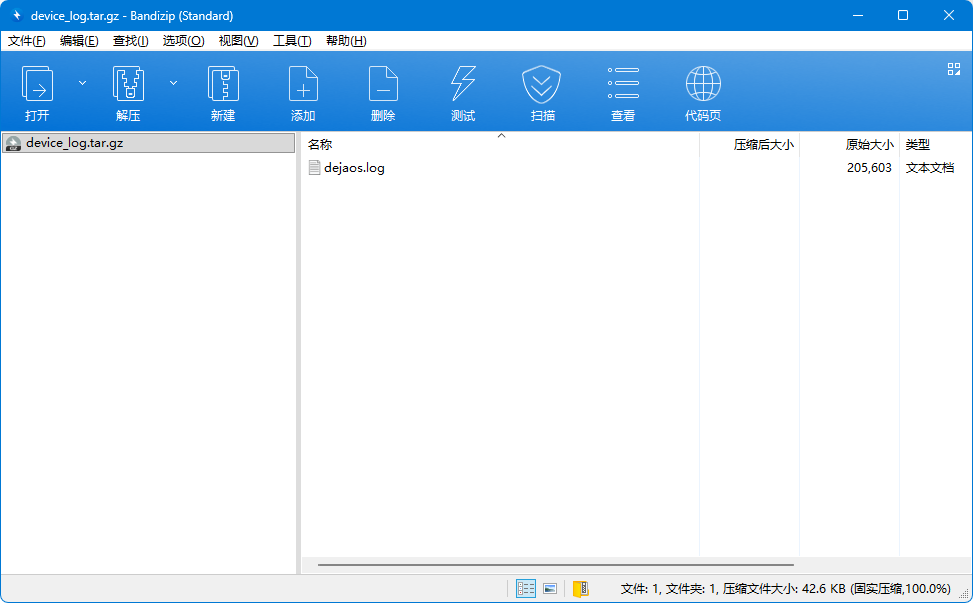
You get device_log.tar.gz. After extraction it usually contains dejaos.log.
If you need logs in a more real-time way, you can upload the log file from your own application to your server using networking modules such as dxHttpClient. The log file path is /data/var/log/dejaos.log.
Cloud device management
Besides the local LAN Web console, 2.1.5 can also work with the cloud console at https://dejaosdm.dxiot.com/. After the device enters System Manager and connects to the internet, it reports to the cloud so you can check status, pull logs, and push app upgrades remotely—especially useful when the device is not on the same LAN as you.
When a device shows up on the cloud
- Active entry: You need to install/upgrade an app or collect logs yourself—enter System Manager (long-press the gray screen on boot), connect the network, and configure your tenant ID.
- Passive entry: The main app crashes repeatedly and the watchdog trips after 6 consecutive restarts. The device stays in System Manager and comes online on the cloud so you can rescue it.
Get started
- Open https://dejaosdm.dxiot.com/, register an account, and save the 8-digit Tenant ID shown after registration.
- On the device, enter System Manager, open Tenant ID, and enter the same ID so the device is bound to your account.
- Connect the device to the internet. After it sends a heartbeat, it appears automatically under Device Management—no manual enrollment.
Your Tenant ID is always shown in the console (top-right / near the avatar) after login.
What you can do
On an online device you can:
| Action | What it is for |
|---|---|
| Query info | Read version and related details for diagnosis |
| Change config | Update selected settings only (empty fields are left unchanged) |
| Upgrade (OTA) | Push a .dpk application package uploaded under OTA Management (app upgrade, not OS firmware flash) |
| Get logs | Ask the device to upload a log archive for download under Log Management |
| Reboot | Soft-reboot the device |
You can also track command status (pending → running → success / fail / timeout) under Command History. If a previous command is still pending, wait until it finishes or times out before sending another.
Tips
- Offline usually means: no network, wrong Tenant ID, cloud access blocked, or the device is not in System Manager.
- If a device suddenly appears online with no action from you, it is often passive entry after crash protection—pull logs first, then push a fixed app package if needed.
2. Old Version (2.0.0): PC Tool Management Mode
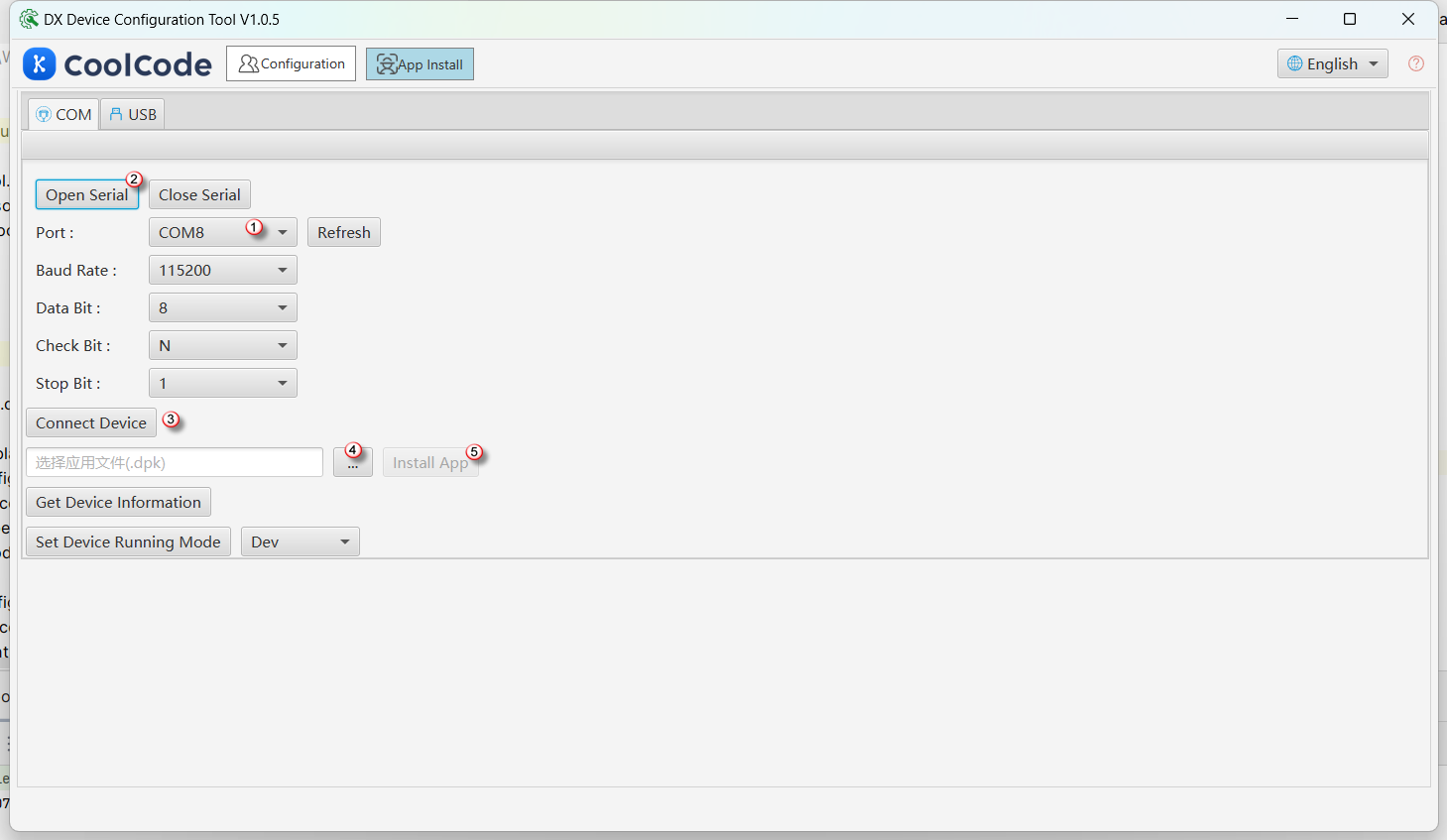
In older versions of the dejaOS system, system management functionality is implemented through a special state known as Safe Mode. This mode is similar to the BIOS mode of a PC, where the device itself does not provide a graphical interface and relies on PC-side tools for operations.
2.1 How to Enter
When the device starts up, there is a 2-second delay window. During this period, you can enter this mode by connecting to PC tools via a serial cable.
2.2 Main Functions
- Install DPK Applications: This is the core function, used to install packaged applications onto the device.
- Switch System Modes: Tools can be used to switch the device to Development, Production, or Test mode.
- Get System Information: You can view basic information such as system version, hardware details, and installed applications.
2.3 Limitations
- Requires extra hardware connection (Serial-to-USB cable).
- Slower data transfer rates (limited by serial baud rate), making application installations time-consuming.