Visual UI Editor
The DejaOS UI Editor is a visual, what-you-see-is-what-you-get editor built into the VSCode DejaOS plugin. A .ui file is a versioned JSON document that describes a dxUi control tree. The editor changes this JSON directly; uiLoader builds the same tree as native dxUi objects when the application runs.
The .ui file stores the control hierarchy, IDs, geometry, and visual properties. Events and business logic stay in JavaScript and are bound after the file is loaded.
Before You Begin
- Open a DejaOS project whose root directory contains
app.dxproj. - Use Install in the IDE, or the matching CLI workflow, to update project components. Confirm that
dxmodules/uiLoader.jsexists. - Keep
.uifiles, images, and TTF fonts inside the directory containingapp.dxprojor one of its subdirectories. - Treat the generated modules in
dxmodulesas the API reference for the current project.
Create and Open a .ui File
Open the VSCode Command Palette and run DejaOS: Create UI File. Select the target DejaOS project and save the file with a .ui extension. You can also create an empty .ui file manually; opening it initializes a version 1 document.
Files ending in .ui open in the visual editor by default. To inspect or repair the JSON, use Reopen Editor With → Text Editor.
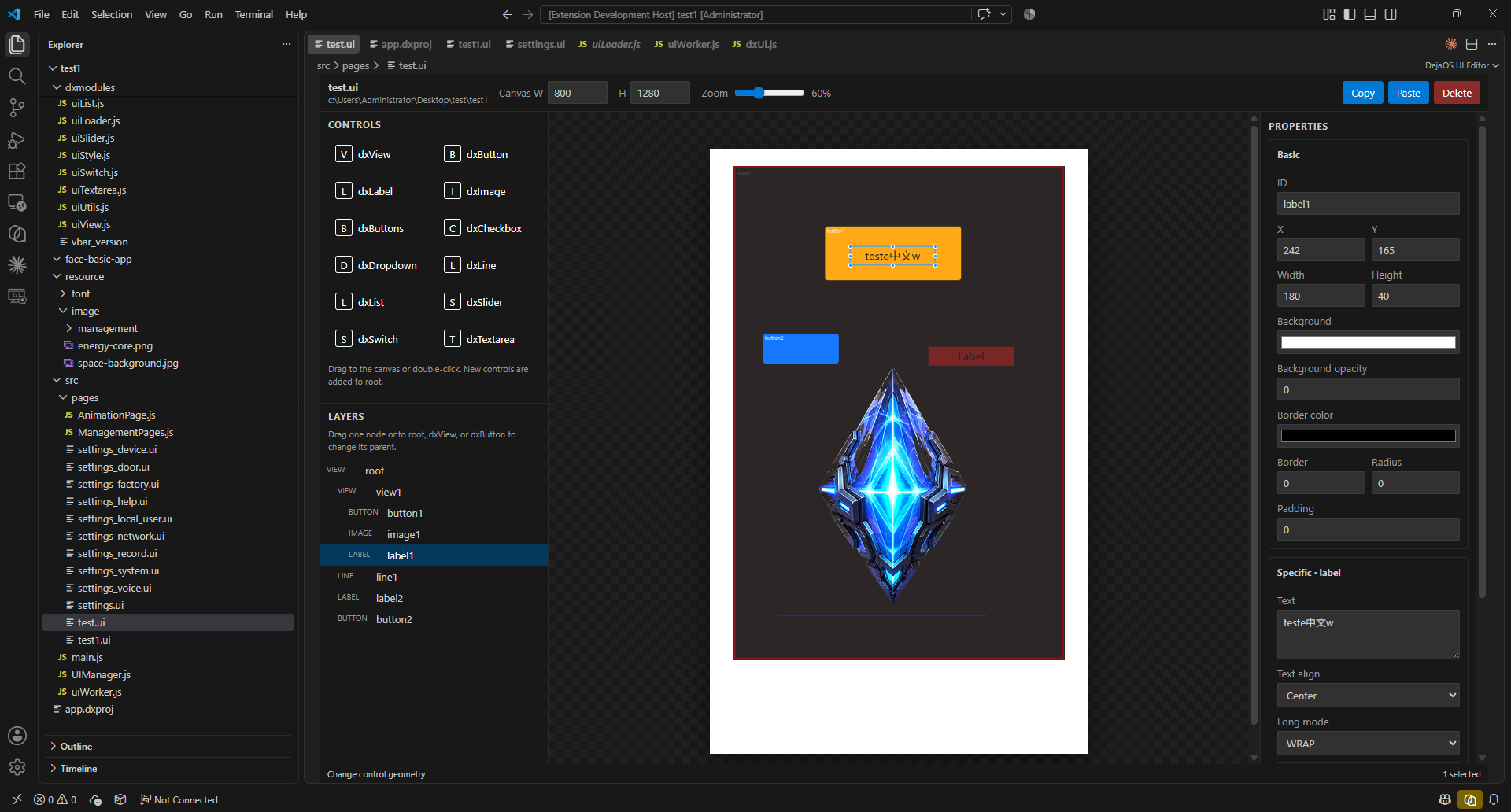
The editor contains four main areas:
- Toolbar — sets canvas width, canvas height, and zoom, and provides Copy, Paste, and Delete.
- Controls — drag a control to the canvas or double-click it to add it to the root.
- Layers — shows the real parent-child hierarchy and is also used to change a control's parent.
- Properties — edits the selected control's common and type-specific properties.
Supported Controls
The current editor supports these dxUi controls:
| Control | Purpose |
|---|---|
dxView | Container and visual block |
dxButton | Clickable button container |
dxLabel | Text |
dxImage | Project image resource |
dxButtons | Button matrix |
dxCheckbox | Checkbox |
dxDropdown | Drop-down selection |
dxLine | Line made from points |
dxList | Text and button list |
dxSlider | Numeric slider |
dxSwitch | On/off switch |
dxTextarea | Text input |
dxButton does not have a text property. Add a dxLabel as its child when a button needs a caption.
Editing the Interface
Canvas and Coordinates
The default canvas is 800 × 1280, and its width and height can be changed in the toolbar. The editor currently uses absolute positioning. A control's x and y coordinates are relative to its direct parent, not always to the screen.
Set the canvas to the target device resolution before laying out the page. Changing the canvas does not automatically adapt existing controls to another resolution.
Selection, Movement, and Arrangement
- Click a control on the canvas or in Layers to select it.
- Hold
Ctrl,Cmd, orShiftto add or remove controls from the selection. - Drag a marquee on an empty canvas area to select multiple controls.
- Drag or resize the selected controls directly on the canvas.
- When two or more sibling controls are selected, use the arrangement panel to align their edges or centers. Three or more sibling controls can also distribute horizontal or vertical spacing.
Copy and paste work through the buttons or Ctrl/Cmd+C and Ctrl/Cmd+V. Two .ui files opened in the same DejaOS project share the UI clipboard, so controls can be copied between pages. Copying between different DejaOS projects is not supported because project resource paths may differ.
Change a Control's Parent
Drag a node in Layers onto root, a dxView, or a dxButton. After confirmation, the entire subtree moves under the new parent. Its child controls remain attached to it, while the moved control's x and y are recalculated to place it near the center of the new parent.
Images and Fonts
The resource picker only accepts files inside the current DejaOS project:
- Images: PNG, JPG/JPEG, or BMP
- Fonts: TTF
Image previews retain the image's original pixel size and clip overflow from the top-left. They are not stretched automatically, matching dxUi/LVGL behavior. Prefer image dimensions that match the dxImage control, or use Match image size.
The browser preview cannot render every TTF exactly like the device. The selected TTF path is saved correctly, but the editor font is an approximation; verify final text layout on the target device.
Load a .ui File
Assume the project contains this structure:
app.dxproj
dxmodules/
  dxUi.js
  uiLoader.js
src/
  uiWorker.js
  pages/
    home.ui
resource/
  font/font.ttf
  image/logo.png
Initialize dxUi before calling uiLoader.loadUi():
import dxui from '../dxmodules/dxUi.js';
import uiLoader from '../dxmodules/uiLoader.js';
import logger from '../dxmodules/dxLogger.js';
import std from '../dxmodules/dxStd.js';

dxui.init({ orientation: 1 });

const root = uiLoader.loadUi('/app/code/src/pages/home.ui');

root.loginButton.on(dxui.Utils.EVENT.CLICK, function handleLogin() {
  logger.info('Login button clicked');
});

dxui.loadMain(root);

std.setInterval(function refreshUi() {
  dxui.handler();
}, 20);
Use the runtime absolute path /app/code/... when loading the file. Image and font paths stored in the .ui document are project-relative and are resolved by uiLoader from /app/code.
In SDK 2.0, put this code in the dedicated UI Worker. In SDK 4.0, initialize and use the UI from the unified main runtime. Always follow the APIs in the modules generated for the current project.
Access Loaded Controls
Every control ID must be a unique JavaScript identifier. Direct children are exposed as properties on their parent, so the visual tree is also the JavaScript access path:
root
└── contentView
    └── submitButton
        └── submitLabel
root.contentView.submitButton.on(
  dxui.Utils.EVENT.CLICK,
  function submitForm() {
    root.contentView.submitLabel.text('Submitted');
  }
);
Dot notation and bracket notation access the same direct-child property. Use dot notation when the ID is known in advance, and bracket notation when the ID is stored in a variable or built dynamically:
// These two expressions refer to the same control.
root.contentView.submitButton;
root['contentView']['submitButton'];

const controlId = 'submitButton';
root.contentView[controlId].on(
  dxui.Utils.EVENT.CLICK,
  function submitForm() {
    root.contentView.submitLabel.text('Submitted');
  }
);
Both forms must follow the actual control hierarchy. root[controlId] only looks for a direct child of root; it does not search every descendant. For example, if a dynamically named back button is a direct child of root, use root[prefix + 'BackButton']. If it is inside contentView, use root.contentView[prefix + 'BackButton'] instead.
const backButton = root[prefix + 'BackButton']; // Direct child of root only
const nestedBackButton = root.contentView[prefix + 'BackButton'];
IDs must be unique inside a .ui file. If several UI files are loaded into memory at the same time, keep their IDs globally unique as well.
When a parent dxView handles a click, decorative child Views, Images, and Labels can intercept hit testing. Set those child objects to clickable(false) so the event reaches the parent.
Use with UIManager
uiLoader.loadUi() can receive an optional parent. A UIManager page can load its root under the manager's shared root and then return it from init():
import dxui from '../../dxmodules/dxUi.js';
import uiLoader from '../../dxmodules/uiLoader.js';
import UIManager from '../UIManager.js';

const SettingsPage = {
  init: function () {
    const root = uiLoader.loadUi(
      '/app/code/src/pages/settings.ui',
      UIManager.getRoot()
    );
    const self = this;
    root.backButton.on(dxui.Utils.EVENT.CLICK, function closeSettings() {
      self.close();
    });
    return root;
  }
};

export default SettingsPage;
Initialize dxUi first, then initialize UIManager, register the page, and open it. UIManager remains responsible for page visibility and navigation; .ui remains responsible for the visual tree.
Current Boundaries
- The editor uses absolute coordinates; responsive and relative layout editing is not currently provided.
- Events and business logic are not stored in
.uifiles. - Image and font resources must remain inside the DejaOS project.
- Cross-page copy and paste works only between
.uifiles in the same project. - Browser rendering is a design preview. Validate the final interface, fonts, images, touch targets, and performance on the real device.