How to Connect Device
Device Connection Types
DejaOS devices come in two connection types:
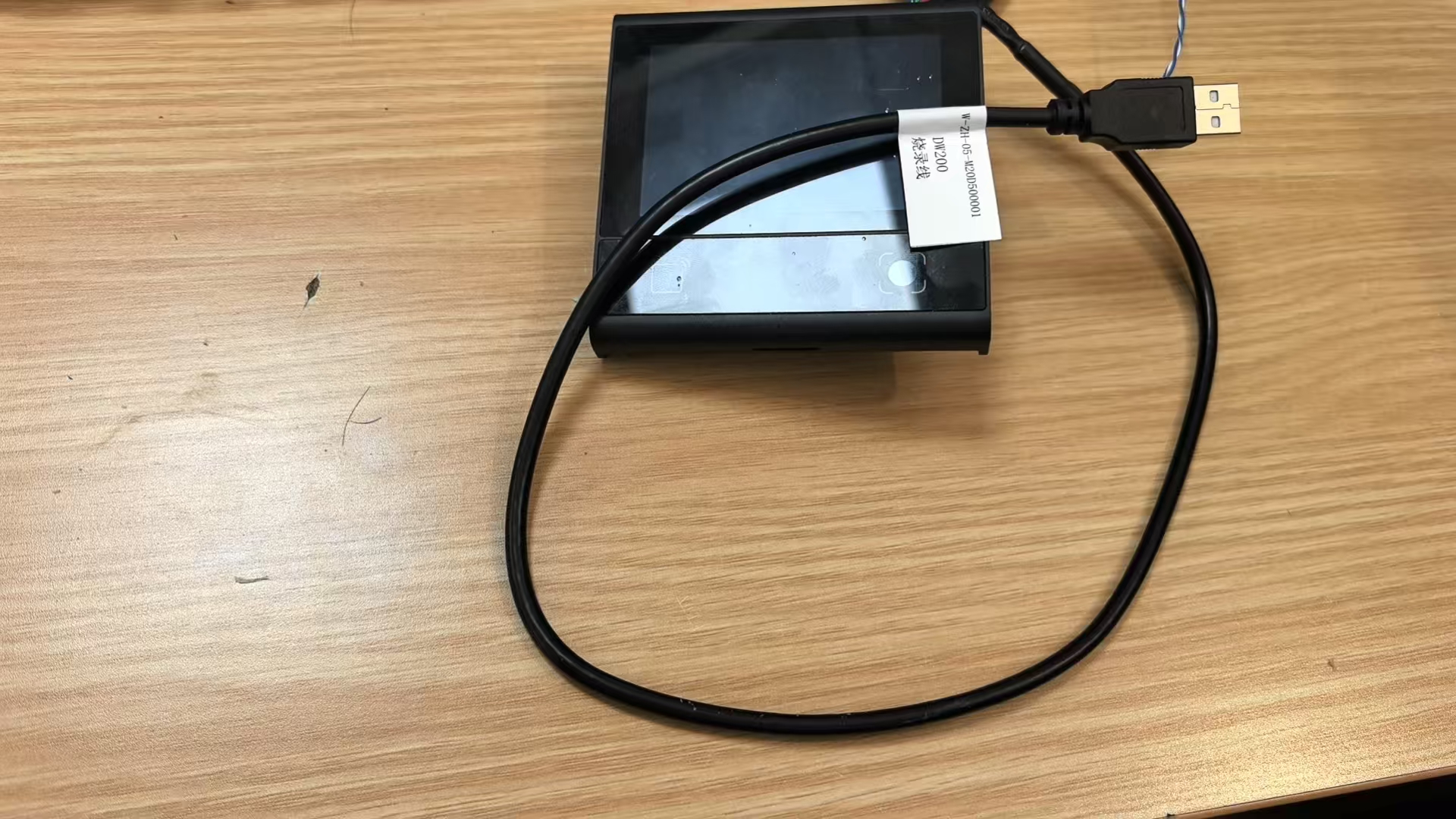
Type 1: Direct USB-A Cable
Some devices come with a built-in USB-A male connector cable. Simply plug the USB-A connector directly into your computer's USB port.
Type 2: USB Type-C Receptacle
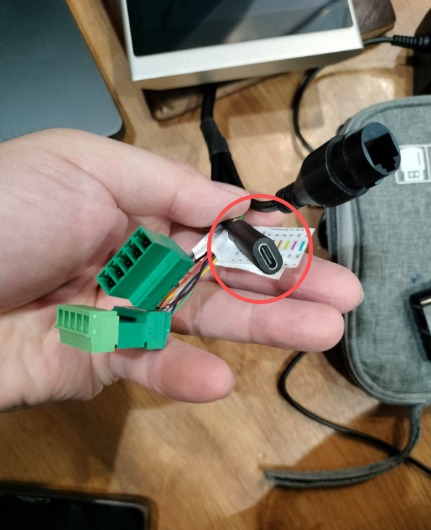
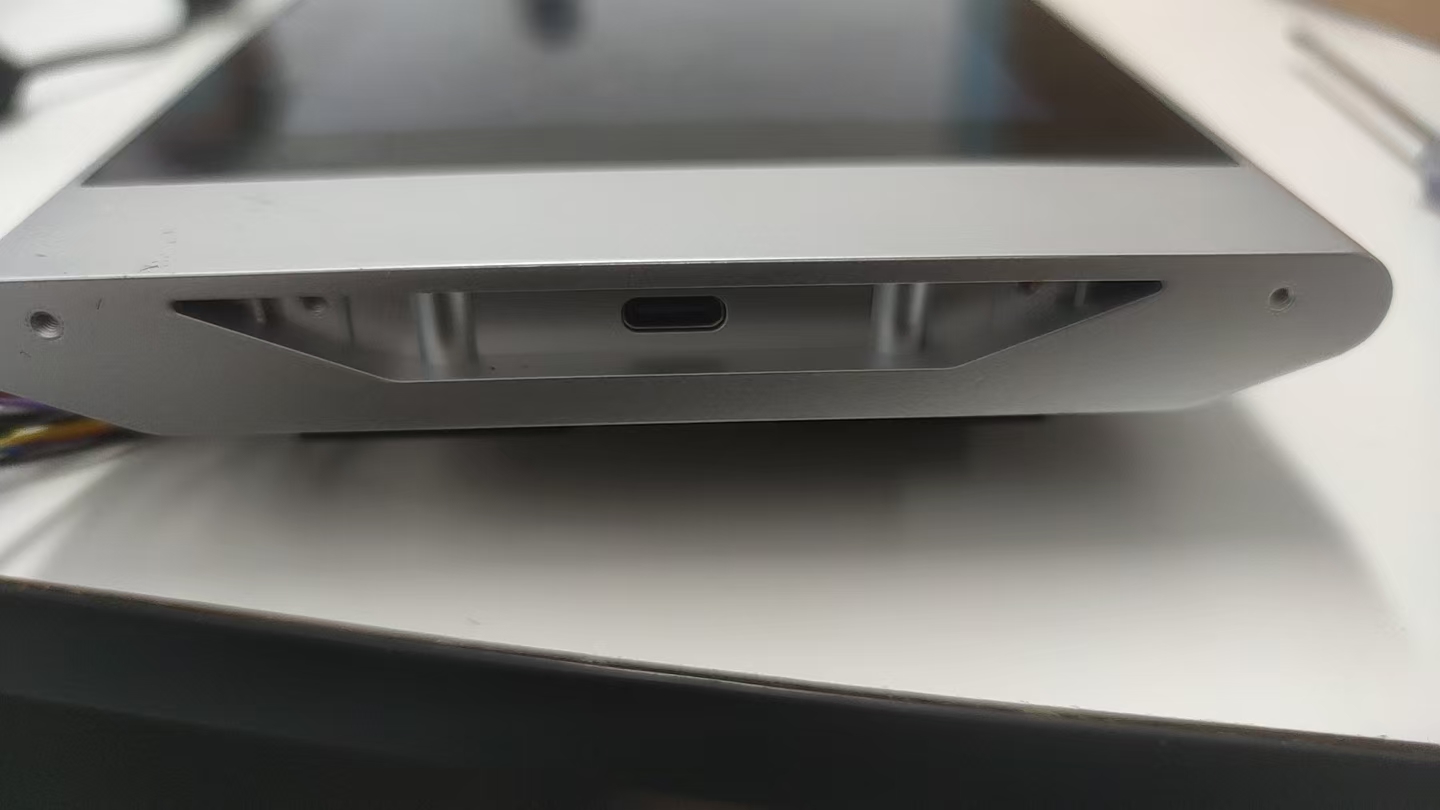
Some devices feature a USB Type-C receptacle. For these devices, you need to use a USB Type-C to USB-A data cable to connect to your computer. Two common form factors are:
- Pigtail Type-C cable: The debug interface is brought out as a cable from the device; plug your data cable into that Type-C receptacle.
- Bottom-mounted Type-C port: The debug interface is integrated into the bottom of the device; connect your data cable to the Type-C port on the bottom.
Cable Requirements:
- You can purchase a USB Type-C to USB-A data cable
- Alternatively, you can use a standard Android phone data cable (USB Type-C to USB-A)
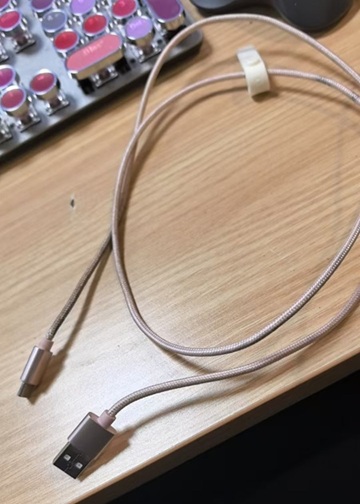
Note: After connecting the cable to the device's Type-C port, plug the USB-A end into your computer's USB port.
Verify Device Recognition
DejaOS devices are HID (Human Interface Device) devices. When connected, the operating system typically does not show a popup notification. You need to manually verify that the device has been recognized. This is not a required step, but it can help you confirm that the device is properly connected.
Windows
- Open Device Manager (press
Win + Xand select "Device Manager") - Expand the "Human Interface Devices" category
- Look for "HID-compliant device" in the list
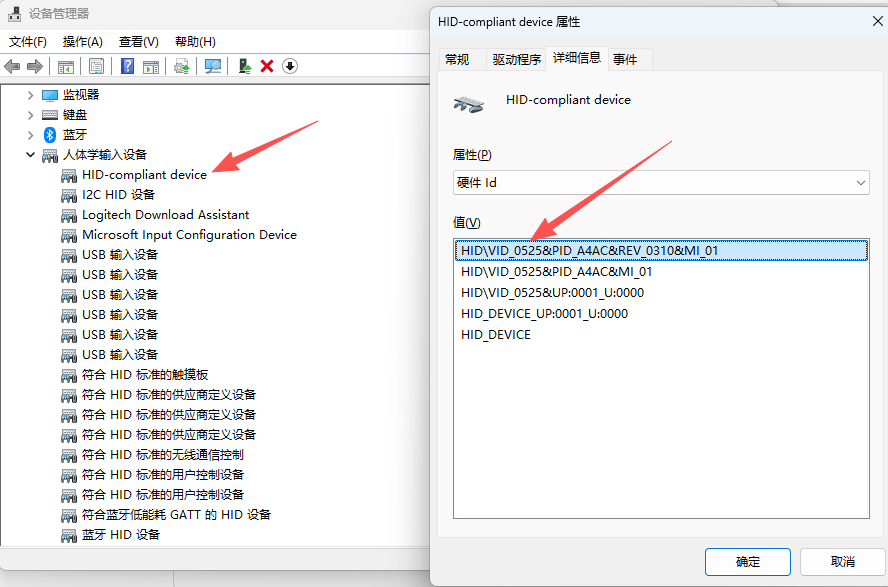
If you see "HID-compliant device" listed and Id is
0x0525, your device has been successfully recognized.
macOS
Method 1: system_profiler
- Open Terminal
- Run the following command:
system_profiler SPUSBDataType - Look for a device entry with:
- Product ID:
0xa4ac - Vendor ID:
0x0525
- Product ID:
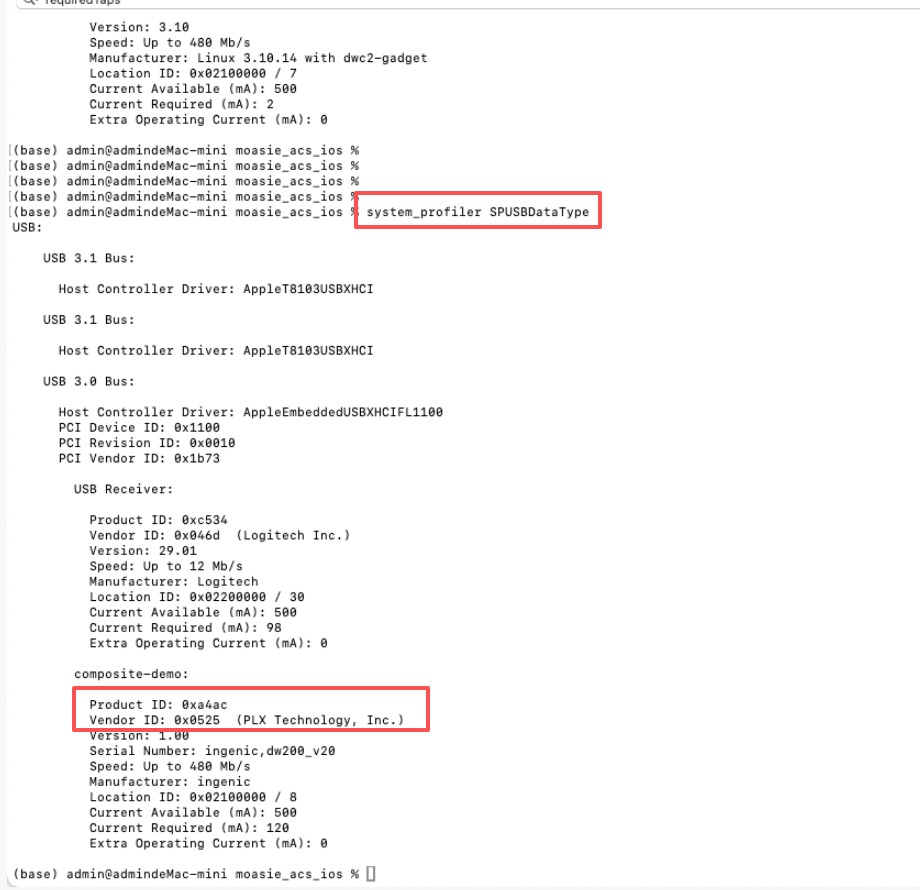
If you find a device matching these IDs, your DejaOS device has been successfully recognized.
Method 2: ioreg (HID device nodes)
To inspect AppleUserHIDDevice entries and quickly confirm the DejaOS HID Gadget, run:
ioreg -n AppleUserHIDDevice -l | grep -E "ProductID|VendorID|Product" | awk -F"= " '{if ($1 ~ /ID/) printf "%s= 0x%x\n", $1, $2; else print $0}' | grep -B 3 "0xa4ac"
If the output includes ProductID = 0xa4ac and nearby VendorID is 0x525 or 0x0525 (same value; leading zero may be omitted), often together with USB Product Name / Product = HID Gadget, the DejaOS device is recognized. Duplicate blocks in the output are normal because ioreg nests the same properties at multiple levels.
Troubleshooting
If your device is not recognized:
- Check the USB cable connection - Ensure the cable is firmly connected at both ends
- Try a different USB port - Some USB ports may not provide sufficient power
- Try a different cable - If using a Type-C device, ensure the cable supports data transfer (not just charging)
- Check device power - Ensure the device is powered on
- Restart your computer - Sometimes a system restart helps with device recognition
Next Steps
Once your device is connected and recognized:
- 📦 Continue with: Hello World Quick Start
- 🔧 Learn more about: DejaOS Device